
Create an event
Sell admission tickets or create a raffle with packages and prizes.
Use an event for in-person ticket sales or a raffle. Open Dashboard → Events → New Event. Event creation is available to school administrators.
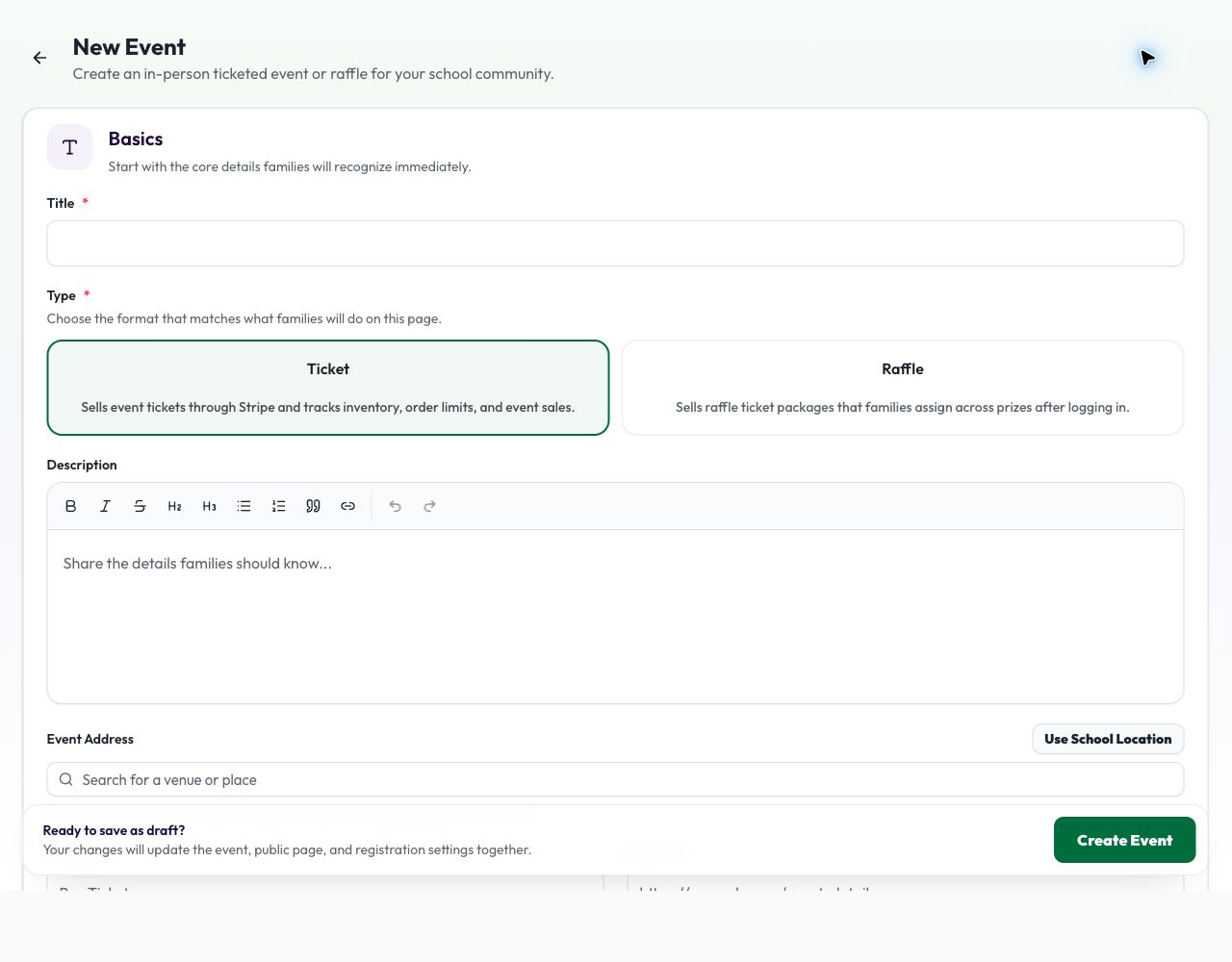
1. Choose the event type
Under Basics → Type, choose Ticket to sell admission tickets and manage inventory, or Raffle to sell ticket packages that members assign to prizes. A raffle requires members to log in.
2. Add the basics and schedule
Enter a required Title. Add an optional rich text Description, Event Address or Use School Location, Button Text, Event URL, and Event Image. The recommended image is an 800 × 200 JPG or PNG. Set the required Start Date & Time and End Date & Time using your school's time zone.
3. Choose the payout account
Select a connected Payout Stripe Account. Ticket and raffle payments use this account. If the picker is empty, add a Stripe account and complete Stripe onboarding first.
4. Configure sales
For a Ticket event, Registration Setup has:
| Option | Meaning |
|---|---|
| Ticket Price | Price per ticket before card processing fees |
| Max Tickets | Total inventory for the event |
| Max Per Order | Maximum tickets in one order |
For a Raffle, add one to three Ticket Packages. Each package needs a ticket count and price. In Prize Catalog, add every prize with a required name and optional description and image. Each prize receives its own public detail page, QR code, and entrant list.
5. Publish
Under Publishing, choose Draft for review or Active to make the event available immediately. Allow Guest Signup is available for ticket events. Raffles always require login so ticket balances stay with member accounts. Select Create Event, review the page and checkout, then share the public link. Later you can edit the event and set it to Completed or Archived.
Related: Signups · Campaigns · Which one should I use?